
A fast WordPress site isn’t optional in 2025 — it’s the foundation of higher rankings, better conversions, and a smoother user experience. Google’s Core Web Vitals, mobile-first crawling, and the shift toward faster web technologies like HTTP/3 and QUIC mean even small performance issues can cost you traffic and sales. Slow hosting, unoptimized images, heavy plugins, or poorly configured caching can quickly drag down your site’s speed.
The good news? Optimizing your WordPress performance is easier — and more impactful — than ever. With the right hosting environment, smart caching, modern image formats, and a clean WordPress setup, you can dramatically speed up your WordPress site and improve your page speed scores across the board.
In this guide, you’ll learn how to optimize WordPress performance in 2025 using practical steps, server-level improvements, plugin-level tweaks, database cleanup, Core Web Vitals optimization, and real-world techniques used by high-traffic websites. Whether you’re running a blog, business site, or WooCommerce store, these strategies will make your WordPress site faster, more stable, and ready for long-term growth.

Key Highlights
Improve your WordPress site speed using modern technologies like LiteSpeed, NVMe SSD storage, and smart caching.
Achieve higher Google rankings by optimizing images, scripts, server response time, and mobile experience.
Server-level enhancements such as HTTP/3, QUIC, and optimized PHP workers make your website load instantly.
Remove bloat, minimize heavy plugins, and streamline your database for stable performance.
Use page caching, object caching (Redis), and a global CDN to deliver content faster across all regions.
Optimize checkout, cart fragments, product images, and scripts for better conversion rates.
Block bad bots, prevent malware, and improve uptime for a more reliable WordPress site.
In This Article
What Is WordPress Performance Optimization?

WordPress performance optimization is the process of improving how fast your WordPress site loads, how efficiently it uses server resources, and how smoothly it responds to visitors. The goal is simple: make your WordPress site faster, more stable, and more efficient — especially under real traffic.
Optimizing your WordPress performance means addressing every part of the system that affects speed, including hosting, caching, images, database, plugins, themes, scripts, security, and Core Web Vitals. In 2025, performance is no longer limited to “install a caching plugin” — it requires a complete, well-planned approach.
How WordPress Loads a Page
A typical page load includes:
- DNS → Server request
- Server processes PHP, database queries
- WordPress loads plugins + theme
- HTML is generated
- Browser loads CSS, JS, and images
- Page becomes interactive
Every step in this chain affects speed, TTFB, and user experience.
Optimizing WordPress performance means making each of these steps faster.
What Slows Down a WordPress Site
Several factors slow down a WordPress website:
- Weak or overloaded hosting
- Heavy themes/page builders
- Too many plugins or poorly coded plugins
- Unoptimized images
- No caching or wrong caching setup
- Slow database queries
- Render-blocking CSS/JS
- No CDN
- Spam bots consuming resources
Identifying these bottlenecks is the foundation of performance optimization.
Why WordPress Optimization Matters More in 2025
With Google’s modern ranking systems focusing heavily on Core Web Vitals, mobile responsiveness, and page experience, performance optimization is now directly tied to:
- Higher Google rankings
- Better user engagement and retention
- Faster mobile loading
- Higher conversions (especially WooCommerce)
- Lower bounce rates
- Faster indexing by Google’s AI-based crawlers
Modern technologies like LiteSpeed, NVMe SSD, HTTP/3, Redis, CDN, and modern image formats make 2025 the best time to upgrade your performance stack.
Why WordPress Performance Matters in 2025 (SEO, UX & Core Web Vitals)
A fast WordPress site isn’t just a technical upgrade — it’s a direct competitive advantage in 2025. Google’s ranking systems now prioritize page experience, Core Web Vitals, mobile performance, and loading stability. Even a small delay of 1 second can reduce conversions by 7% and significantly increase bounce rates.
When your WordPress site loads fast, you gain higher visibility, better engagement, and a more trustworthy brand image. And in 2025, with search results becoming AI-enhanced and user expectations rising, performance matters more than ever.
Core Web Vitals Directly Influence Rankings
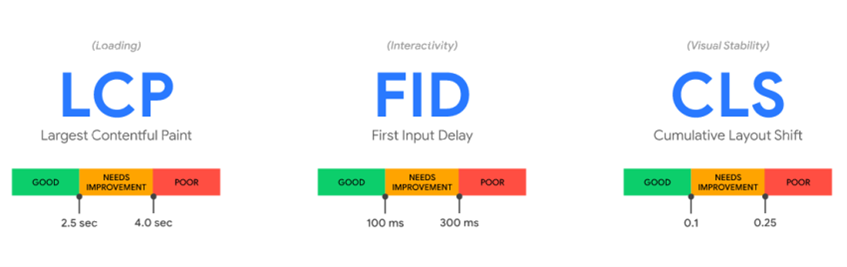
Google measures real-user page experience through three Core Web Vitals metrics:
- LCP (Largest Contentful Paint): How quickly your main content loads
- INP (Interaction to Next Paint): How responsive your site feels
- CLS (Cumulative Layout Shift): How stable your layout is during loading
A slow server, heavy images, or blocking scripts can hurt all three — which means lower rankings and reduced visibility.
Improving your performance optimization improves all CWV signals at once.
Better User Experience = Higher Conversions
Your users expect pages to load instantly. If your WordPress site feels slow, they leave.
Fast sites get:
- Longer time on page
- Higher trust
- Better user satisfaction
- More leads
- Higher WooCommerce conversions
90% of users have abandoned a website simply because it loaded too slowly — don’t let yours be one of them.
Why 2025 Speed Optimization Is Different (AI Crawlers, HTTP/3 & Mobile-First)
Three major shifts make performance optimization more important than ever:
1. AI-powered crawlers
Google is relying more on AI systems that prioritize fast-loading pages — slow sites get crawled less often.
2. HTTP/3 + QUIC acceleration
Modern browsers load faster with HTTP/3, but only optimized hosting environments can deliver the full benefit.
3. Mobile-first indexing
Your mobile performance now determines not just mobile rankings — but desktop rankings too.
In 2025, optimizing WordPress performance isn’t optional…
It’s essential for SEO, user experience, and business growth.
How to Test Your WordPress Site Speed (Before Optimization)

Before you begin optimizing your WordPress performance, it’s important to understand your current speed, bottlenecks, and real-world loading experience. A proper speed test helps you track improvements, diagnose issues correctly, and avoid guessing what’s slowing down your site.
Use these trusted tools to measure loading time, server response, Core Web Vitals, and file behavior — especially on mobile.
Google PageSpeed Insights (Core Web Vitals Benchmark)
PageSpeed Insights (PSI) provides the most important performance data:
- LCP (Largest Contentful Paint) – how fast your main content loads
- INP (Interaction to Next Paint) – how responsive your site feels
- CLS (Cumulative Layout Shift) – layout stability during loading
- Opportunities & Diagnostics – suggestions to fix issues
- Real User Data (CrUX) – how real visitors experience your site
PSI is the best place to check if your WordPress site meets Google’s 2025 performance standards.
GTmetrix (Waterfall Analysis for Identifying Bottlenecks)
GTmetrix gives deeper technical insights:
- Detailed waterfall chart
- Slow scripts, fonts, images
- Redirect chains
- TTFB breakdown
- Fully Loaded Time
- File-by-file loading order
If your site is slow and the reason is unclear, GTmetrix is the best tool to locate the exact issue.
WebPageTest (Advanced Filmstrip Loading Insights)
WebPageTest allows you to test speed from multiple locations and devices, offering:
- Video/filmstrip loading
- TBT (Total Blocking Time)
- First Byte Time
- Lighthouse metrics
- CDN efficiency
- Connection-level performance
This is especially useful for diagnosing mid-size to large WordPress sites or WooCommerce stores.
How to Interpret Your Speed Test Results Correctly
When reviewing your results, focus on these key indicators:
- TTFB (Time to First Byte): server speed & hosting quality
- LCP: image or hero section optimization
- INP: JS execution & script blocking
- CLS: unstable layouts, ads, fonts
- Total Page Size: images, videos, scripts
- Requests Count: plugin-heavy or bloated themes
If any of these metrics score poorly, it means your WordPress performance needs targeted optimization in the pages ahead.
Server-Level Optimization (Highest Impact Area)

Your hosting environment has the single biggest impact on WordPress performance. Even the best caching plugin or theme can’t compensate for slow servers, overloaded shared hosting, or outdated technology. In 2025, server-level optimization determines your TTFB, Core Web Vitals, mobile speed, and your ability to handle traffic spikes.
Optimizing your WordPress performance always starts at the server, not the plugin layer.
Choose the Right Hosting Type (Shared vs VPS vs Managed WordPress)
Your hosting type defines how much processing power, memory, and bandwidth your WordPress site can use.
Shared Hosting
- Cheapest but slowest
- Limited CPU/RAM
- Slows down during peak hours
- Not recommended for performance
VPS Hosting
- Dedicated virtual resources
- Better CPU, RAM, SSD
- Ideal for growing businesses
- Requires technical setup unless managed
Managed WordPress Hosting (Recommended)
- Optimized specifically for WordPress
- Better security, caching, and updates
- Fast TTFB and stable uptime
- Handled by WordPress experts
Why it matters:
If your hosting can’t deliver fast responses, no amount of caching will make your site genuinely fast.
LiteSpeed vs NGINX vs Apache (Benchmark Insights)

In 2025, the biggest performance difference comes from the web server technology powering your WordPress site.
Apache (Old Standard)
- Reliable but slow under heavy load
- Thread-based architecture
- High CPU usage
NGINX (Faster Alternative)
- Event-driven architecture
- Better concurrency
- Great for static sites or reverse proxy setups
LiteSpeed Enterprise (Fastest for WordPress)
- Native LSCache integration
- HTTP/3 + QUIC support
- Up to 40% faster dynamic responses
- Better WooCommerce performance
- Lower CPU usage even during traffic spikes
Why LiteSpeed wins:
It’s the only server with a WordPress-native caching engine (LSCache) built-in.
NVMe SSD + CloudLinux + HTTP/3 = Faster TTFB
Modern WordPress performance depends heavily on server hardware and protocol efficiency.
NVMe SSD Storage
- 5–10× faster than SATA SSD
- Reduces database query time
- Improves LCP & INP scores
CloudLinux OS
- Isolates accounts on shared/VPS environments
- Prevents “noisy neighbors”
- Makes resource allocation stable
HTTP/3 + QUIC Protocol
- Faster handshake times
- Better on slow mobile networks
- Improves global performance
Combined, these reduce your server’s Time to First Byte (TTFB) — the biggest factor in page load speed.
PHP Version, PHP Workers & Server Resources
Your PHP configuration directly affects how many requests your WordPress site can process at a time.
Use the Latest PHP Version (8.1 / 8.2 / 8.3)
- Faster execution
- Better memory handling
- Required for new plugins
PHP Workers (Critical for WooCommerce)
These determine how many simultaneous processes your site can handle.
Low workers = slow checkout, slow backend, 503 errors.
Memory Limits & CPU Core Allocation
- Memory limit should be 256MB+
- More CPU cores = faster execution
- Better for WooCommerce, LMS, membership sites
Distilled Insight:
If your hosting is slow → your entire WordPress site is slow, no matter how many optimization plugins you install.
That’s why server-level improvements create the biggest speed gains.
Caching Optimization (2025 Best Practices)

Caching is one of the most powerful ways to speed up your WordPress website. Instead of generating pages dynamically on every request, caching stores a pre-built, static version of your site so it loads instantly for visitors. The result is lower server load, faster TTFB, and significantly better Core Web Vitals.
In 2025, an effective caching strategy combines page caching, browser caching, object caching, and CDN-level caching — especially for high-traffic or WooCommerce websites.
Page Cache (LiteSpeed Cache Recommended)
Page caching stores full HTML versions of your pages so they load instantly without running PHP or database queries.
Why LiteSpeed Cache is the best option in 2025
- Native server-level integration (LSCache engine)
- Faster than plugin-only caching
- Supports ESI (Edge Side Includes) for dynamic content
- Automatic QUIC.cloud optimization
- CDN integration
- Native image optimization (WebP/AVIF)
- Tight Core Web Vitals improvements
LiteSpeed Cache outperforms WP Rocket, W3 Total Cache, and Autoptimize when used on LiteSpeed or OpenLiteSpeed servers.
Use if:
You’re on WP Swift hosting or any LiteSpeed-based host.
Browser Cache for Faster Returning Visits
Browser caching stores static assets in the user’s browser:
- Images
- CSS
- JavaScript
- Fonts
- Media files
It reduces reloading time and improves user experience — especially for mobile users on slower networks.
Recommended settings:
- Cache-Control headers
- Expires headers
- ETag handling
- Long caching for static files (1 month+)
LiteSpeed Cache and QUIC.cloud automatically manage these headers.
Object Cache (Redis/Memcached)
Object caching stores database query results so they don’t need to run repeatedly.
Best for:
- WooCommerce stores
- LMS websites
- Blogs with heavy plugins
- Membership sites
- High traffic setups
Redis Advantages (2025)
- Faster object retrieval
- Lower database load
- Improves INP (interaction) on dynamic pages
- Instant backend improvements
- Reduces PHP processing time
When combined with LiteSpeed + NVMe SSD, Redis offers the fastest WordPress dynamic performance.
Server-Level Cache vs Plugin-Level Cache
Most people rely only on caching plugins, but plugin-only caching is limited.
Server-level caching (LiteSpeed, NGINX FastCGI) delivers:
- Faster TTFB
- Lower CPU load
- Better handling of traffic spikes
- More reliable cache hits
- Better WooCommerce performance
Summary:
✔ Server-level cache → FASTEST
✔ Plugin cache → good but NOT enough alone
✔ Browser + object cache → essential for holistic optimization
Core Insight:
Caching creates the performance foundation your WordPress site runs on.
But maximum results come when caching is combined with:
- A fast host
- NVMe SSD
- LiteSpeed server
- Object caching
- CDN
This caching stack is exactly what WP Swift delivers.
Image Optimization for Better Page Speed

Images are one of the most common reasons WordPress sites load slowly. Large file sizes, outdated formats, and unoptimized delivery can significantly delay LCP (Largest Contentful Paint) — a major Google ranking factor in 2025. Optimizing your images ensures pages load quickly, especially on mobile networks where bandwidth is limited.
Modern WordPress performance relies on smart compression, next-gen formats, responsive delivery, lazy loading, and CDN-level optimization.
Use Next-Gen Image Formats (WebP & AVIF)
Traditional formats like JPEG and PNG are outdated for modern performance standards.
Recommended Formats for 2025
- WebP: 25–35% smaller than JPEG/PNG with no quality loss
- AVIF: Up to 50% smaller than WebP, best for maximum compression
- SVG: Best for logos and vector graphics (scales without loss of quality)
Why these formats matter
- Faster LCP
- Less bandwidth usage
- Better global performance on mobile
- Improved PageSpeed Insights scores
LiteSpeed Cache, Imagify, ShortPixel, and Cloudflare can automatically convert images to WebP/AVIF.
Compress Images Without Losing Quality
Compression reduces image file size without visible quality loss.
Two types of compression
- Lossless compression: Preserves original quality, slightly smaller files
- Lossy compression: Much smaller files, minimal visual difference
Recommended compression level:
- 60–80% (best balance for WordPress)
Tools like LSCache Image Optimization, ShortPixel, Smush, and Imagify automate this process.
Enable Lazy Loading for Faster Initial Load
Lazy loading delays the loading of images until the user scrolls to them, reducing initial page weight.
Benefits
- Faster first paint
- Better mobile performance
- Lower CLS
- Reduced initial server load
WordPress now supports native lazy loading, but LiteSpeed Cache and modern builders handle it more efficiently.
Serve Scaled & Responsive Images
Images should match the size and resolution of the device viewing them.
Best practices
- Avoid uploading full-resolution (4000px+) images
- Use WordPress responsive image attributes (srcset, sizes)
- Resize hero images to correct dimensions
- Deliver retina images only when needed
Serving properly scaled images often results in dramatic LCP improvements.
Use a CDN for Faster Global Image Delivery
CDNs store and deliver your images from the nearest server to your visitor.
Recommended CDNs for 2025
- QUIC.cloud
- Cloudflare
- BunnyCDN
CDN benefits
- Faster image delivery
- Reduced server load
- Better global SEO performance
CDNs also handle automatic compression, caching, and resizing.
Core Insight:
Image optimization alone can improve your WordPress page speed by 20–40%, especially on mobile.
Combined with LiteSpeed caching and a modern CDN, image optimization becomes one of the most powerful tools for improving Core Web Vitals.
CSS, JavaScript & Font Optimization (2025 Guide)

CSS, JavaScript, and fonts have a major impact on how quickly your WordPress site becomes visible and interactive. In 2025, Google’s Core Web Vitals—especially INP (Interaction to Next Paint) and CLS (Cumulative Layout Shift)—are directly affected by render-blocking scripts, unused CSS, oversized font files, and poorly optimized loading order.
Optimizing these assets ensures faster initial rendering, smoother user interaction, and better mobile experience.
Remove Unused CSS (Critical for Above-the-Fold Speed)
Most WordPress themes and page builders load large CSS files, even for pages that don’t need them. This increases render-blocking time and slows down LCP.
How to fix it
- Remove unused CSS using performance plugins
- Inline critical CSS
- Only load CSS needed for the visible portion of the page
- Use page-builder “disable unused modules” options
Recommended tools
- LiteSpeed Cache (Critical CSS + UCSS)
- WP Rocket (Remove Unused CSS)
- Perfmatters (Script Manager)
Removing unused CSS can significantly reduce your LCP score.
Defer or Delay JavaScript Execution
JavaScript is one of the biggest causes of slow interaction times and poor INP.
Two modern techniques
- Defer JS: Loads JS after HTML parsing
- Delay JS: Loads JS only when a user interacts or scrolls
Result:
Your above-the-fold content loads faster, and heavy scripts don’t block rendering.
Examples of scripts to delay
- Analytics scripts
- Third-party embeds
- Sliders
- Popups
- Page-builder scripts not needed on initial load
Using JS defer/delay can improve INP by up to 30–40%.
Preload Critical CSS & Fonts
Fonts and critical CSS files are some of the first assets needed to display content properly.
Why preloading helps
- Reduces layout shifts (better CLS)
- Ensures fonts load early
- Improves visual stability on mobile
- Helps render above-the-fold content faster
Best practices
- Preload only your primary font weights (e.g., 400, 600)
- Preload main stylesheet if it’s small
- Avoid preloading too many files (can backfire)
Font formats to use in 2025:
- WOFF2 (best)
- Avoid TTF or OTF in production
Minify & Combine Files (When Safe)
Minification removes spaces and comments, reducing file size.
Combining files is helpful in some cases but not always recommended for HTTP/3.
Recommended approach
- Minify CSS/JS always
- Combine only when necessary
- Avoid combining JS on complex sites (can break layouts)
- HTTP/3 already handles multiple small requests efficiently
Tools: LSCache, WP Rocket, Autoptimize.
Reduce Render-Blocking Resources
Render-blocking files delay the browser from showing the first content.
Common render-blocking assets
- CSS in the <head>
- Synchronous JS
- Google Fonts
- Unminified builder CSS
How to fix them
- Inline critical CSS
- Move JS to footer
- Defer JS
- Preload fonts
- Optimize Google Fonts delivery
This directly boosts LCP, INP, and First Contentful Paint (FCP).
Core Insight:
CSS, JS, and fonts play a major role in Core Web Vitals.
When optimized properly, you can achieve:
- Faster LCP
- Better INP (new 2024/2025 ranking signal)
- Zero layout shifts (CLS)
- Smoother mobile performance
- Faster overall rendering
This section alone can reduce loading times by 30–50% when combined with caching.
Database Optimization

Your WordPress database stores everything — posts, pages, plugin settings, comments, logs, sessions, transients, and more. Over time, unused data, auto-saved revisions, expired cache entries, and plugin leftovers slow down your database, increasing query time and reducing your site’s responsiveness.
A clean, optimized database makes your WordPress site faster, more stable, and more efficient — especially under load.
Clean Transients, Revisions, Spam & Auto-Drafts
WordPress automatically creates a lot of temporary data:
- Revisions for every post edit
- Auto-drafts saved every few minutes
- Expired transients created by plugins
- Spam & trashed comments
- Old sessions
- Temporary cache tables
Over time these pile up and slow database queries.
What to clean regularly
- Post revisions
- Autosaves
- Drafts & trashed posts
- Old transients
- Spam/trashed comments
- Plugin leftovers (tables not removed after uninstall)
Tools to clean
- LiteSpeed Cache DB Clean
- WP-Optimize
- Advanced Database Cleaner
- Perfmatters DB
Cleaning this junk regularly reduces DB size and improves overall performance.
Optimize Autoloaded Data (wp_options Table)
The wp_options table is one of the most important parts of your database.
If too many plugins add “autoloaded” options, this table becomes bloated.
Symptoms of an overloaded wp_options table:
- Slow backend
- Slow frontend
- High TTFB
- Queries taking long time
- WooCommerce backend freeze
Best practices
- Limit autoloaded entries to essential ones only
- Remove old plugin leftover entries
- Identify heavy autoloaded rows (100KB+ size)
A small wp_options table = dramatically faster WordPress.
Reduce Heavy Database Queries (Especially on WooCommerce)
Some plugins run queries on every page load:
- Page builders
- Analytics plugins
- Search plugins
- WooCommerce fragments
- Query-heavy sliders
- Membership plugins
Optimizing heavy queries
- Use object caching (Redis)
- Disable features you don’t use
- Avoid plugins that store unnecessary logs
- Reduce cart fragments
- Clean WooCommerce logs regularly (status logs, sessions, actions scheduler entries)
Redis + NVMe SSD = ultra-fast backend response.
Use a Database Optimization Plugin (Safe Automation)
Instead of manually managing everything, a good database optimization plugin can automate cleanup.
Recommended tools
- LiteSpeed Cache (built-in DB optimizer)
- WP-Optimize
- Perfmatters DB Tools
- Advanced Database Cleaner Pro
Features to enable
- Remove post revisions
- Clean transients
- Optimize tables
- Delete orphaned meta
- Remove spam/trash automatically
- Schedule weekly cleanups
These tools ensure your DB remains lightweight without affecting functionality.
Core Insight:
A clean database speeds up:
- Query execution
- Backend dashboard
- Product pages
- Category pages
- Search pages
- Checkout flow
- Dynamic requests (good for INP)
Database optimization + NVMe SSD + Redis = a guaranteed improvement in WordPress performance.
Plugin & Theme Optimization

Plugins and themes make WordPress powerful — but they are also the biggest reason for slow sites, high TTFB, bad INP scores, and unstable layouts. Many sites rely on too many plugins, outdated themes, or heavy page builders that load unnecessary scripts on every page.
To fully optimize your WordPress performance in 2025, you must identify slow plugins, reduce bloat, use lightweight themes, monitor conflicts, and ensure only essential features are active.
How to Identify Slow Plugins (The Right Way)
Not all plugins are equal. Some are lightweight, but many are slow, unoptimized, or create unnecessary database queries.
Tools to identify slow plugins
- Query Monitor: Detects slow queries, scripts, and plugin bottlenecks
- Performance Lab: Shows asset usage and potential optimizations
- Health Check & Troubleshooting: Helps identify plugin conflicts
- New Relic (Advanced): Server-level PHP performance monitoring
Signs a plugin is slowing your site
- High CPU usage
- Slow backend dashboard
- Increased TTFB
- Large CSS/JS assets
- Many database queries
- INP score becomes worse
Common heavy plugins
- Page builders (Elementor, WPBakery, Divi)
- Analytics plugins
- Slider plugins
- Form builders with too many features
- Security plugins with real-time scanning
- Membership & LMS plugins
Slow plugins = slow WordPress, no matter how much caching you use.
Avoid Plugin Bloat (Keep Only What You Need)
Most WordPress sites don’t need 30–40 plugins.
Unnecessary plugins create:
- More scripts
- More database queries
- Higher TTFB
- Higher INP
- More compatibility issues
- Lower stability during traffic
- Slower backend
Best practices
- Keep plugin count under 20 (ideal 10–15 for blogs)
- Delete plugins you don’t use
- Replace multi-feature plugins with lightweight ones
- Avoid duplicate-function plugins (e.g., two SEO plugins)
- Do NOT overload your site with marketing add-ons
Every removed plugin = faster loading + fewer queries + fewer conflicts.
Lightweight Themes vs Heavy Page Builders
Your theme affects global CSS, JS, layout rendering, and mobile performance.
Lightweight WordPress themes (recommended)
- Astra
- GeneratePress
- Blocksy
- Kadence
- Neve
Heavy themes to avoid
- ThemeForest multipurpose themes
- Page-builder-only themes
- Themes with built-in sliders, animations, and dozens of modules
Why lightweight themes win
- Smaller CSS/JS
- Faster rendering
- Better mobile performance
- Higher PageSpeed/Lighthouse scores
- Fewer conflicts
- Cleaner code
In 2025, Google’s INP makes lightweight themes even more important.
Plugin Conflicts & Debugging (2025 Must-Know)
Plugin conflicts are one of the biggest reasons WordPress sites slow down or break.
Even top SERP competitors often skip this — but your blog should explain it.
Common signs of plugin conflicts
- Layout breaking
- Checkout not loading
- Buttons not clickable
- Slow backend
- 500 errors on plugin activation
- High INP numbers
- Frontend JS console errors
How to debug conflicts the right way
- Use Health Check Plugin → Troubleshooting Mode
Temporarily disables all plugins for only YOU (visitors unaffected). - Enable plugins one by one
Identify the one causing slowdown. - Use Query Monitor
See exactly which plugin is causing heavy queries or script loads. - Disable unnecessary features inside plugins
Many plugins offer toggles to reduce load. - Check plugin changelogs
Poorly maintained plugins often cause issues.
Result: A faster, more stable WordPress site.
Reduce Frontend Script Load (Page Builder Optimization)
Page builders load many scripts even when not needed.
How to optimize
- Disable unused modules
- Remove global widgets
- Limit animations & sliders
- Replace builder-based headers/footers with theme hooks
- Use block-based templates whenever possible
This alone can drastically improve INP & LCP.
Core Insight:
Plugins and themes are the backbone of WordPress — but if not optimized, they become the number-one source of slowdown.
By reducing plugin bloat, switching to lightweight themes, and identifying conflicts early, you can cut load times by 30–60%, improve Core Web Vitals, and drastically increase WordPress site stability.
CDN Optimization (2025 Update)

A Content Delivery Network (CDN) is essential for fast global performance in 2025. Instead of loading your website’s static files (images, CSS, JS, fonts) from a single server location, a CDN distributes them across multiple data centers worldwide. This ensures visitors get the fastest load speed no matter where they are.
Modern CDNs also improve Core Web Vitals, TTFB, mobile loading, stability, and protect your server from unnecessary load.
When You Should Use a CDN
A CDN is recommended for ANY WordPress website that:
- Serves international visitors
- Uses high-quality images or videos
- Runs WooCommerce or membership systems
- Has traffic spikes
- Hosts large CSS/JS assets
- Uses page builders
- Wants to improve LCP, FCP, and CLS
If you want a fast, globally optimized site → a CDN is mandatory in 2025.
QUIC.cloud, BunnyCDN & Cloudflare (Best CDNs for WordPress 2025)
1. QUIC.cloud CDN (Best for LiteSpeed Users)
Perfect for sites on LiteSpeed or WP Swift hosting.
Benefits include:
- Full LSCache integration
- HTTP/3 + QUIC
- Dynamic page caching
- Real-time image optimization
- Low latency edge servers
- Global routing for stable performance
2. BunnyCDN (Best for Price + Performance)
Extremely fast and lightweight CDN ideal for:
- WordPress blogs
- WooCommerce shops
- Image-heavy sites
Key benefits:
- Low latency
- Perma-cache
- Smart image optimization
- Very affordable
3. Cloudflare (Best All-Rounder for Security + CDN)
Great for:
- Security
- Bot protection
- Global stability
Useful features:
- HTTP/3
- Brotli compression
- Cache everything (optional)
- Page Rules (for advanced users)
For WordPress specifically, pairing LiteSpeed Cache + QUIC.cloud + NVMe hosting delivers the fastest stack.
CDN Cache Rules for WordPress + WooCommerce
To avoid caching issues (especially with carts, checkout, and account pages), use the proper rules.
Recommended CDN cache rules (2025):
Do NOT cache:
- /cart/*
- /checkout/*
- /my-account/*
- /wp-admin/*
- Dynamic query parameters
- WooCommerce fragments
Cache everything for:
- Blog posts
- Pages
- Static resources
- Product pages (if dynamic fragments excluded)
Use Edge Rules (if available)
- Serve HTML from CDN when possible
- Custom TTL for pages vs posts
- Bypass cache for logged-in users
These rules ensure speed without breaking WooCommerce.
How a CDN Improves Core Web Vitals
A CDN directly influences the 3 most important metrics:
LCP (Largest Contentful Paint)
Images, banners, hero sections load faster from the nearest CDN edge.
INP (Interaction to Next Paint)
CDN reduces JS load + server round trips, improving interactivity.
CLS (Cumulative Layout Shift)
CDN stabilizes asset delivery → prevents layout jumps.
Core Insight:
A CDN doesn’t just make your WordPress site faster — it makes it globally optimized, more stable, and more resilient under heavy traffic.
LiteSpeed Cache + QUIC.cloud + NVMe hosting = the highest-performing 2025 WordPress stack.
WooCommerce Performance Optimization

WooCommerce is more resource-intensive than a normal WordPress website. It loads dynamic content, processes real-time data (cart, checkout, inventory), and interacts with multiple plugins. Even small performance issues in WooCommerce can slow down your product pages, increase cart abandonment, and damage your conversion rates.
To run a high-performing WooCommerce store in 2025, you must optimize dynamic scripts, database queries, caching rules, and global performance.
Reduce Cart Fragments & AJAX Calls (Biggest WooCommerce Bottleneck)
wc-ajax=get_refreshed_fragments is responsible for updating the cart in real-time —
but it also causes slow loading, high CPU usage, and bad INP scores.
Fix Options
- Disable cart fragments on non-cart pages
- Use LiteSpeed Cache WooCommerce optimization
- Replace AJAX-based cart updates with lightweight solutions
- Delay non-essential scripts
Why it matters
Reducing AJAX requests dramatically improves:
- Checkout page speed
- Product page loading
- Mobile performance
- INP and TTFB metrics
Optimize Product Images & Media
WooCommerce product galleries often contain large images.
Optimization checklist
- Use WebP/AVIF
- Compress at 60–80%
- Enable lazy loading
- Serve scaled images
- Use responsive image attributes
- Use QUIC.cloud or BunnyCDN image optimization
This improves LCP, especially on mobile product pages.
Clean Up WooCommerce Logs, Sessions & Crons
WooCommerce generates a large amount of temporary data:
- woocommerce_sessions
- wp_actionscheduler_* tables
- Inventory logs
- Order logs
- Payment gateway logs
What to clean regularly
- Expired sessions
- Old order logs
- Failed scheduled actions
- Inventory sync logs
Tools:
- LiteSpeed DB Cleaner
- Advanced Database Cleaner
- WP-Optimize
- WooCommerce Status Tools (built-in)
Cleaning WooCommerce tables reduces query time and speeds up admin + frontend performance.
Optimize Checkout Scripts for Faster Conversions
Checkout pages should load with minimum friction.
Recommended optimization
- Delay marketing scripts (FB pixel, GA4)
- Disable unnecessary CSS/JS
- Only load payment gateway scripts on checkout
- Inline critical CSS for faster above-the-fold display
- Disable animations
A clean checkout = higher conversions.
Use Object Caching (Redis) for Dynamic WooCommerce Content
Redis dramatically improves dynamic WooCommerce performance:
- Faster cart updates
- Faster backend
- Faster product filtering
- Lower database load
- Better INP
Redis + NVMe SSD = the fastest WooCommerce stack in 2025.
CDN Optimization for WooCommerce
Do NOT cache the following:
- Cart
- Checkout
- My account
- Payment pages
- Dynamic query URLs
Do cache:
- Product pages
- Category pages
- Images
- Static resources
QUIC.cloud and BunnyCDN handle WooCommerce edge rules perfectly.
Core Insight:
WooCommerce performance doesn’t improve through caching alone —
you must optimize:
- Dynamic requests
- Product images
- Scripts
- Database
- Session data
- CDN rules
- Server-level performance
When combined with LiteSpeed + Redis + NVMe SSD hosting, WooCommerce becomes dramatically faster and more stable.
Security + Performance = Faster WordPress (2025)

Security and performance go hand-in-hand. A slow, unsecured, or vulnerable website not only risks attacks — it also consumes extra server resources, overwhelms PHP workers, increases CPU usage, and slows down every page load. In 2025, Google heavily favors stable, low-error, low-load, secure websites because they deliver a better user experience.
A secure WordPress installation is almost always a faster WordPress installation.
Block Bad Bots & Spam Requests (Instant Performance Boost)
More than 40–60% of website traffic is generated by bots — and many of them are harmful, unnecessary, or resource-heavy.
Bad bots cause:
- High CPU usage
- Slow TTFB
- Increased PHP worker load
- Fake checkout attempts
- Poor INP due to server congestion
How to fix it
- Enable IP blocking (Imunify360 or a firewall)
- Use LiteSpeed’s “bad bot blocker”
- Block XML-RPC attacks
- Limit login attempts
- Use Cloudflare bot protection
Blocking malicious requests often improves performance instantly — especially for WooCommerce stores.
Use a Firewall & Malware Protection (Reduce Server Load Dramatically)
A hacked or compromised website loads much slower because malicious scripts:
- Inject unwanted code
- Load external resources
- Run hidden processes
- Increase CPU usage
- Add spam comments/posts
- Break JS/CSS → slower rendering
Recommended protection stack
- Imunify360 (best server-level protection)
- Firewall (LiteSpeed ModSecurity)
- Malware scanning + auto-clean
- Cloudflare WAF (premium)
When malware and malicious scripts are gone, server performance improves immediately.
Why Hacked Sites Always Slow Down
A compromised WordPress site often experiences:
- 10x more database queries
- Frequent PHP timeouts
- Error logs filled with warnings
- High resource usage
- Slow browsing experience
- Broken caching due to injected code
This results in:
- Poor LCP
- Bad INP
- CLS shifts
- Delayed rendering
- Lower SEO rankings
A secure site = a stable, fast site.
Core Insight:
Security and performance are two sides of the same coin.
When you reduce malicious traffic, secure your server, remove malware, and protect dynamic processes, your WordPress site becomes significantly faster and more stable.
WP Swift hosting includes Imunify360, LiteSpeed WAF, CloudLinux isolation, and server-level bot protection — giving you both speed and security.
Mobile Optimization (Core Web Vitals Focus)

In 2025, Google ranks your website primarily based on mobile performance. Your mobile scores directly determine both mobile and desktop rankings — meaning even a fast desktop site can rank poorly if its mobile version is slow, unstable, or unresponsive.
To improve Core Web Vitals, your mobile optimization strategy must focus on LCP, INP, CLS, responsive design, fast media loading, and stable layouts.
Optimize LCP (Largest Contentful Paint) for Mobile
Mobile LCP is often worse than desktop due to slower networks and limited processing power.
Common LCP elements
- Hero section images
- Large background images
- Sliders
- Featured product images
- Header banners
How to improve mobile LCP
- Use WebP/AVIF for hero images
- Preload main banner/hero image
- Compress images at 60–80%
- Remove sliders from mobile view
- Inline critical CSS
- Use LiteSpeed Cache’s critical CSS features
- Reduce blocking scripts
- Serve scaled-down mobile images
These improvements can reduce your LCP by 30–50%.
Improve INP (Interaction to Next Paint)
(INP is the NEW Google Core Web Vital for responsiveness)
Slow mobile interaction comes from:
- Heavy JavaScript
- Third-party scripts
- Page-builder assets
- Popup scripts
- Sliders and animations
- WooCommerce fragments
How to improve INP
- Delay all non-essential JavaScript
- Defer analytics, ads, tracking scripts
- Remove unused plugins
- Limit sliders & animations
- Optimize or replace heavy page builder modules
- Use object caching (Redis) for dynamic content
A good INP makes your site feel instantly responsive.
Fix CLS (Cumulative Layout Shift) on Mobile
Layout shifts destroy mobile user experience and hurt rankings.
Common CLS triggers
- Flashing fonts
- Images without width/height attributes
- Ads or banners loading late
- Sticky headers shifting content
- Lazy-loading images without placeholders
How to fix CLS
- Always set width and height on images
- Preload web fonts
- Use font-display: swap;
- Add placeholders for lazy-loaded content
- Avoid sudden popups
- Disable layout-shifting animations
Stable layouts = higher user trust + better rankings.
Image & Font Loading for Mobile
Mobile pages perform best when image and font delivery is optimized.
Best practices
- Use responsive images (srcset, sizes)
- Serve smaller mobile images
- Use WOFF2 font format
- Preload only essential font weights
- Limit custom fonts to 1–2 families
- Use system fonts if possible for maximum speed
Fonts often delay rendering more than images — optimizing them improves both LCP and CLS.
Core Insight:
Mobile optimization is the heart of WordPress performance in 2025.
When your site loads fast, interacts instantly, and maintains a stable layout on mobile, you automatically achieve stronger Core Web Vitals and higher search rankings.
Accessibility + Performance (Google 2025 Update)

Accessibility isn’t just about making your WordPress site usable for everyone — it directly impacts speed, layout stability, mobile experience, and Core Web Vitals. In 2025, Google’s ranking systems reward websites that deliver fast, stable, and accessible interactions, especially for mobile users and people using assistive technologies.
A site that is more accessible is almost always faster and more user-friendly, which improves both SEO and conversion rates.
Fonts, Color Contrast & Layout Stability
1. Fonts
Poorly optimized fonts can delay rendering and create CLS issues.
Best practices
- Use WOFF2 fonts for faster delivery
- Preload your main font
- Limit font weights (400/600/700 max)
- Use font-display: swap for smooth loading
- Consider system-font stacks for maximum performance
Fonts that load efficiently = faster LCP + zero layout shifts.
2. Color Contrast
Good contrast reduces eye strain and improves readability — which improves user engagement.
Google now monitors user engagement signals, so accessible color contrast indirectly improves SEO by:
- Reducing bounce rate
- Improving mobile reading experience
- Increasing on-page interaction
3. Layout Stability (CLS)
Accessibility often means a stable, predictable layout — exactly what Core Web Vitals measure.
Fix common issues
- Add fixed height/width to images
- Prevent banner shifts
- Avoid loading ads or popups without space reserved
- Use placeholders for lazy-loaded elements
- Ensure buttons don’t shift when content loads
This decreases CLS and makes your website feel polished.
Tap Targets & Mobile Responsiveness
Accessibility guidelines recommend larger tap targets so users can click easily — especially on mobile.
Why it helps performance
- Better mobile UX → lower bounce rate
- Improved interaction metrics (INP)
- Fewer mis-clicks → fewer reloads
Best practices
- Buttons should be at least 44px
- Keep enough spacing between elements
- Avoid overly small links or menus
- Simplify mobile navigation
Google’s mobile-first indexing loves clean mobile accessibility.
How Accessibility Boosts SEO + Core Web Vitals
Accessibility improves multiple ranking factors at once:
SEO Benefits
- Lower bounce rate
- Higher engagement
- Better readability + dwell time
- Improved mobile user experience
Performance Benefits
- More stable layout (CLS)
- Faster rendering
- Smoother interaction (INP)
- Better image and font usage
User Experience Benefits
- Easier for visually impaired users
- Works better with screen readers
- Better on low-bandwidth networks
- More predictable and stable layouts
Google rewards sites that offer fast, stable, accessible experiences.
Core Insight:
Accessibility and performance are deeply connected.
When your site becomes more accessible — it also becomes faster, more stable, easier to use, and better optimized for Google.
This is one of the smartest ways to improve rankings in 2025.
How to Continuously Monitor WordPress Performance (Expert 2025 Method)

Optimizing your WordPress site once isn’t enough — performance can change due to plugin updates, theme changes, traffic spikes, database growth, or server load variations.
To stay fast and maintain strong Core Web Vitals, you need continuous performance monitoring.
Monitoring helps you detect issues early, fix bottlenecks before they affect rankings, and maintain long-term speed stability.
LiteSpeed Cache Dashboard (Real-Time Website Insights)
If your site is hosted on LiteSpeed (like WP Swift), the LiteSpeed Cache plugin provides powerful monitoring tools.
Key metrics to track
- Cache hit/miss ratio
- Page load time
- TTFB
- Image optimization progress
- QUIC.cloud performance
- Dynamic vs cached requests
- CDN usage statistics
A high cache hit ratio = fast WordPress site.
A low ratio means some plugins or pages may be bypassing the cache.
New Relic (Advanced PHP & Database Performance Monitoring)
New Relic is the industry-standard tool for deep performance analysis.
Track using New Relic
- Slow PHP processes
- Plugin-level performance
- Database query delays
- External API delays
- High CPU usage points
- Memory bottlenecks
It helps identify performance bottlenecks that normal speed tests cannot detect.
Best for:
WooCommerce stores, large websites, resource-heavy setups.
Server Monitoring (CloudLinux, UptimeRobot, Hosting Metrics)
CloudLinux Resource Usage
- CPU limits
- Memory usage
- I/O usage
- Number of entry processes
- PHP worker saturation
If you regularly hit resource limits → your hosting plan is restricting performance.
Uptime Monitoring Tools
- UptimeRobot
- Better Uptime
- Pingdom
These monitor downtime, response time, and global server latency.
Built-In Error & Debug Logs (Fix Issues Before They Become Problems)
WordPress logs contain valuable data about performance-related issues.
Monitor
- PHP error logs
- WP debug logs
- Slow query logs
- HTTP errors (403/404/500)
- Plugin conflicts
- Theme errors
- Cron job failures
Fixing log errors often improves both backend and frontend performance.
Performance Regression Alerts (2025 Importance)
Performance regression happens when:
- A plugin update breaks optimization
- A theme update adds new scripts
- WooCommerce updates cause heavy queries
- Page-builder blocks load extra CSS/JS
- CDN cache stops working
- Object cache resets
Set alerts for:
- Sudden TTFB increase
- Drop in Core Web Vitals
- Cache miss spikes
- High CPU or memory usage
- Increased 5xx errors
A small regression can quickly impact rankings — monitoring helps catch it before Google does.
Core Insight:
Continuous monitoring transforms performance optimization from a one-time fix into a sustainable, long-term strategy.
Regular checks ensure your WordPress site remains fast, stable, and ready for traffic — even as plugins, themes, or content grow.
WP Swift’s optimized hosting stack + monitoring tools make long-term speed maintenance simple and reliable.
Common Mistakes That Slow Down WordPress (Avoid These in 2025)

Even with caching and optimizations in place, many WordPress sites remain slow because of a few critical mistakes. These issues often go unnoticed, but they dramatically increase TTFB, worsen Core Web Vitals, and reduce the overall responsiveness of your site.
Avoiding these mistakes alone can boost your WordPress performance by 30–60% — even before applying advanced optimization techniques.
Installing Too Many Plugins
This is the biggest performance killer.
Why too many plugins slow your site
- More database queries
- More CSS/JS files
- Higher memory usage
- Increased INP delays
- Plugin conflicts
- Slow backend dashboard
Fix
- Keep plugins under 15–20 maximum
- Remove plugins with overlapping functionality
- Replace heavy plugins with lightweight alternatives
- Disable unused modules inside plugins
Every unnecessary plugin = unnecessary load.
Using Slow or Bloated Themes
Multipurpose themes and heavy page builders load large CSS/JS bundles that slow down:
- Rendering
- Mobile load time
- Interaction speed
- CLS stability
Fix
Use lightweight themes:
- Astra
- GeneratePress
- Blocksy
- Kadence
- Neve
Themes designed for speed → faster WordPress.
Not Using Proper Caching
Many users rely only on plugin caching or misconfigure it entirely.
Common caching mistakes
- Caching disabled for key pages
- Wrong caching mode (static vs dynamic)
- No browser caching
- No object caching (Redis)
- Using a poor hosting environment with no server-level cache
Fix
For best results use:
- LiteSpeed Cache (server-level)
- Redis object cache
- QUIC.cloud CDN caching
A proper caching setup = instant loading pages.
Oversized or Unoptimized Images
Images often make up 50–70% of page weight.
Mistakes
- Uploading 4000px+ images
- Using JPEG/PNG instead of WebP
- No compression
- No lazy loading
- Serving desktop images on mobile
Fix
- Convert to WebP/AVIF
- Compress images
- Lazy-load below-the-fold images
- Serve responsive sizes
Reduces LCP dramatically.
Not Using a CDN (Especially for Global Traffic)
Serving all assets from a single origin slows down:
- Mobile users
- International visitors
- Image-heavy pages
Fix
Use a CDN like QUIC.cloud, Cloudflare, or BunnyCDN.
Running WooCommerce Without Optimization
WooCommerce is heavy by nature.
Mistakes
- Cart fragments running everywhere
- Large product images
- Unoptimized checkout
- No object caching
- Database not cleaned
Fix
Follow WooCommerce optimization best practices.
Not Cleaning Up Database & WooCommerce Logs
Database bloat increases query times.
Mistakes
- Not deleting transients
- Ignoring autoloaded data
- Leaving abandoned sessions
- WooCommerce logs piling up
Fix
Clean weekly using:
- LiteSpeed DB optimizer
- WP-Optimize
- Advanced DB Cleaner
Using Cheap, Overloaded Hosting
Even perfect optimization won’t fix slow hosting.
Symptoms of weak hosting
- High TTFB
- Slow backend
- Frequent downtime
- Unable to handle small traffic spikes
- Poor PHP worker allocation
Fix
Use a modern stack with:
- LiteSpeed
- NVMe SSD
- Redis
- CloudLinux
- HTTP/3 support
Exactly what WP Swift provides.
Core Insight:
Most performance problems aren’t caused by “not optimizing enough” — they’re caused by making the wrong decisions with plugins, themes, caching, images, and hosting.
Avoiding these mistakes ensures your WordPress optimization efforts actually work.
Speed Plugins Are Not Enough (2025 Reality Check)

Many WordPress users assume that installing one or two “speed plugins” will magically fix all performance issues. But in 2025, website performance is far more complex. Plugins can only optimize what already exists — they cannot fix slow servers, large images, blocking code, or poor hosting configurations.
Speed plugins are helpful tools, but they are not a full performance strategy on their own.
Why Caching Plugins Alone Can’t Fix Slow Hosting
If your server is slow, overloaded, or running outdated technology, even the best caching plugin cannot compensate for:
- High TTFB (Time to First Byte)
- Low PHP worker limits
- Overcrowded shared servers
- No NVMe storage
- No LiteSpeed or HTTP/3 support
- Slow database queries
A plugin cannot accelerate a server that is inherently slow.
Caching works best only when:
- The hosting stack is already modern
- The server supports LiteSpeed Cache
- NVMe SSD is used for database
- Redis handles object caching
This is why hosting is the foundation of optimization — not plugins.
The Limitations of Speed Plugins
Speed plugins can help, but they cannot fix core performance issues like:
- Heavy or bloated themes
- Poor coding in plugins
- Large image files
- Slow WooCommerce AJAX calls
- Blocked rendering by CSS/JS
- Lazy-loading conflicts
- CLS (layout shift) issues
- Mobile INP delays
- Database bloat
- Slow server response
- Problematic third-party scripts
A plugin cannot change the fact that your theme loads 500KB CSS or your page builder injects dozens of JavaScript files.
What Actually Delivers True WordPress Speed in 2025
A complete performance setup requires all layers to work together, not just a plugin:
Server-Level Optimization
- LiteSpeed server
- NVMe SSD
- HTTP/3 + QUIC
- CloudLinux isolation
- Proper PHP workers
Caching Layers
- Page cache
- Browser cache
- Object cache (Redis)
CDN Optimization
- QUIC.cloud
- Cloudflare
- BunnyCDN
Code Optimization
- Remove unused CSS
- Defer/delay JavaScript
- Preload fonts
- Minify assets
Database Optimization
- Clean transients
- Optimize tables
- Remove logs & sessions
Image Optimization
- WebP/AVIF
- Compression
- Responsive scaling
WooCommerce Optimization
- Reduce AJAX calls
- Clean sessions
- Optimize fragments
This holistic approach delivers true performance, not a temporary speed boost.
The 2025 Fast WordPress Stack (Recommended)
Here is the stack used by high-performance WordPress + WooCommerce websites:
- LiteSpeed Enterprise Web Server
- NVMe SSD Storage
- Redis Object Caching
- QUIC.cloud CDN
- LiteSpeed Cache Plugin
- Optimized Database + Images
This is the same stack WP Swift provides across its hosting plans — engineered specifically for real-world speed, stability, and scalability.
Core Insight:
Speed plugins are helpful, but they are not a solution by themselves.
Real WordPress performance comes from combining plugin-level optimization with a fast server, CDN, caching, image compression, database cleanup, and stable themes.
A plugin alone improves speed.
A complete performance system transforms your entire website.
Quick Wins (5-Minute WordPress Speed Boost)

If you want immediate performance improvements without advanced configuration, these quick optimizations can speed up your WordPress site in just a few minutes. Each of these changes is simple, safe, and delivers measurable results — especially for LCP, INP, and TTFB metrics.
Minify CSS, JavaScript & HTML
Reduces file size and makes pages load faster.
Tools:
- LiteSpeed Cache
- Autoptimize
Enable Lazy Loading for All Images
Only loads images as users scroll, which improves initial load time.
Lazy loading is built into WordPress — just make sure it’s enabled.
Convert Images to WebP or AVIF
Modern formats reduce image size by 30–50%.
Use LSCache, ShortPixel, or Imagify for fast conversion.
Delete Unused Plugins & Themes
Every removed plugin saves:
- Database queries
- CSS/JS files
- PHP execution time
This instantly reduces page weight and improves response time.
Clear Old Cache & Enable Server-Level Caching
A fresh and optimized cache ensures:
- Faster TTFB
- Faster loading pages
- Less server load
LiteSpeed Cache’s “Purge All” → then “Rebuild Cache” is the easiest method.
Use a CDN (Enable QUIC.cloud or Cloudflare)
A CDN dramatically improves speed for global visitors.
- Faster images
- Faster CSS/JS
- Reduced latency
Turn on QUIC.cloud if you’re on LiteSpeed (WP Swift recommended).
Update PHP to Fastest Version (8.1+ or 8.2+)
Newer PHP versions = faster execution + better security.
Increases backend and frontend speed instantly.
Optimize Database Automatically
Clean revisions, transients, and spam comments.
Use LiteSpeed DB Optimization or WP-Optimize.
Result:
These quick wins can improve your PageSpeed Insights scores by 10–30 points within minutes — without any technical skills.
WordPress Performance Checklist

Use this complete checklist to audit and optimize your WordPress performance. You can apply it weekly or monthly to maintain fast, stable performance across your entire website.
Server & Hosting Checklist
- Uses LiteSpeed Enterprise or NGINX (avoid outdated Apache-only setups)
- NVMe SSD storage enabled
- HTTP/3 + QUIC activated
- PHP 8.1+ or PHP 8.2 running
- CloudLinux or similar resource isolation active
- Proper PHP worker limits configured
- Server TTFB under 200–300ms
- Redis object cache enabled (recommended for WooCommerce)
Caching Checklist
- Page caching enabled (LiteSpeed Cache recommended)
- Browser caching active (with long TTL for static files)
- Object cache using Redis/Memcached
- HTML, CSS, JS minified
- Cache exclusion rules set for dynamic paths (cart, checkout, account)
- CDN caching operating correctly (QUIC.cloud, Cloudflare, or BunnyCDN)
Image Optimization Checklist
- All images converted to WebP or AVIF
- Images compressed between 60–80%
- Lazy loading enabled
- Scaled images served correctly
- Responsive image attributes (srcset, sizes) active
- CDN delivering edge-optimized images globally
CSS, JavaScript & Font Checklist
- Unused CSS removed
- Critical CSS generated
- JavaScript deferred or delayed
- Fonts preloaded (only essential weights)
- Using WOFF2 fonts
- Avoiding render-blocking CSS/JS
- Script Manager rules applied for selective loading
Database Checklist
- Revisions cleaned
- Transients removed
- Auto-drafts & trash cleared
- WooCommerce sessions/logs cleared
- Autoloaded data optimized in wp_options
- Database tables optimized
- Weekly or monthly scheduled cleanup active
Plugin & Theme Checklist
- Plugin count under 20 (ideal 10–15)
- No duplicate-function plugins
- No outdated or poorly maintained plugins
- Page builder modules minimized
- Lightweight theme in use (Astra, GP, Kadence)
- Plugin conflicts tested using Health Check / Query Monitor
- Disable unused plugin features
WooCommerce Checklist
- Cart fragments reduced or limited
- Product images optimized
- Checkout scripts minimized
- WooCommerce logs cleaned
- Redis object caching active
- CDN rules exclude cart/checkout/account
- AJAX requests minimized
CDN Checklist
- CDN enabled (QUIC.cloud / BunnyCDN / Cloudflare)
- Cache rules for dynamic pages correct
- Global edge caching working
- Image optimization enabled
- Brotli/Gzip compression active
Mobile Performance Checklist
- LCP under 2.5 seconds on mobile
- INP under 200ms
- CLS under 0.1
- Fonts preloaded to prevent flashing
- No heavy sliders on mobile
- Tap targets sized for accessibility
- Responsive image delivery active
Security + Performance Checklist
- Firewall active (LiteSpeed WAF / Cloudflare WAF)
- Blocks bad bots
- XML-RPC protected or disabled
- Malware scan clean
- Error logs free of PHP notices/warnings
- No suspicious outgoing connections
- Login rate limiting enabled
Ongoing Monitoring Checklist
- Cache hit/miss ratio monitored
- TTFB monitored weekly
- Server resource usage monitored
- Uptime reports reviewed
- Core Web Vitals tracked in Search Console
- After every plugin/theme update → retest speed
- New Relic or similar monitoring for large sites
Final Quick Check
If all these items are checked:
✔ Your WordPress site is fully optimized
✔ Core Web Vitals are stable
✔ Google ranking potential is higher
✔ WooCommerce performance is maximized
✔ Mobile UX is smooth and consistent
FAQs – Choosing the Right WordPress Hosting in 2025
How do I optimize my WordPress site for better performance in 2025?
Use a combination of fast hosting (LiteSpeed + NVMe), optimized caching, image compression, minimized CSS/JS, database cleanup, CDN delivery, and Core Web Vitals improvements.
What is the fastest way to speed up a WordPress website?
The fastest improvement comes from server-level upgrades (LiteSpeed, NVMe SSD, Redis), followed by caching, image optimization, and removing slow plugins.
Does hosting really affect WordPress speed?
Yes — hosting is the #1 factor impacting TTFB, server response time, and real-world speed. Even the best caching plugin cannot fix slow, outdated, or overloaded hosting.
Which caching plugin is best for WordPress in 2025?
LiteSpeed Cache is the best option when used on LiteSpeed servers. It offers server-level caching, QUIC.cloud integration, image optimization, critical CSS, UCSS, and Core Web Vitals improvements.
How can I reduce my WordPress TTFB?
- Move to LiteSpeed or high-quality hosting
- Use NVMe SSD
- Enable server-level caching
- Use Redis object cache
- Optimize database and autoloaded data
- Reduce plugin bloat and heavy themes
How do I improve my Core Web Vitals on WordPress?
Focus on LCP, INP, and CLS:
- Optimize hero images
- Remove unused CSS
- Delay JavaScript
- Preload fonts
- Improve server response time
- Enable CDN
Why is my WordPress backend slow?
Slow backend usually comes from:
- Database bloat
- High autoloaded options
- Excessive plugins
- Low PHP workers
- Weak hosting
Redis object caching + NVMe storage improve backend speed instantly.
Is WooCommerce slower than normal WordPress?
Yes — WooCommerce loads dynamic data, scripts, and AJAX requests. Optimizing cart fragments, checkout scripts, images, and using Redis caching dramatically speeds it up.
Do I need a CDN for WordPress?
If you have global visitors or image-heavy pages, YES.
CDNs like QUIC.cloud, Cloudflare, or BunnyCDN improve global speed, reduce latency, and stabilize Core Web Vitals.
What is the best WordPress performance stack for 2025?
The highest-performing stack is:
LiteSpeed Enterprise + NVMe SSD + Redis + QUIC.cloud CDN + LiteSpeed Cache Plugin.
Exactly what WP Swift uses.
Conclusion: Build a Faster, More Reliable WordPress Site in 2025
WordPress performance optimization in 2025 is no longer just about installing a caching plugin — it’s about building a complete, efficient, and modern performance stack. From choosing the right hosting environment to optimizing images, CSS/JS, database queries, and Core Web Vitals, every layer of your website plays a role in how fast it loads and how well it ranks.
Whether you’re running a blog, business website, or WooCommerce store, the principles in this guide help you create a faster, more stable, more secure, and more scalable WordPress experience. With the right combination of hosting, caching, CDN delivery, and code optimization, you can significantly improve your rankings, conversions, and overall user satisfaction.
For website owners who want maximum performance with minimal complexity, using a platform that’s already optimized for speed makes the biggest difference. And that’s exactly what WP Swift delivers.
Make Your WordPress Website 3× Faster with WP Swift
Experience the fastest WordPress performance with:
- LiteSpeed Enterprise servers
- NVMe SSD storage
- Redis object caching
- QUIC.cloud CDN acceleration
- Optimized PHP workers
- Full security stack (Imunify360 + WAF)
- 1-click migrations
- $1 first-month trial